
OpenAI
GPT Image
OpenAI's image model, the one behind the ChatGPT image generator. Strong prompt following, clear compositions and reliable everyday marketing visuals.
Try it for: Marketing visuals, precise prompts
Your session has been flagged for unusual activity.
Please confirm you're human to continue.
MultipleChat gives you GPT Image, OpenAI's image model behind the ChatGPT image generator, in one place with Nano Banana, Nano Banana Pro, Ideogram, Leonardo and SD3. Run one prompt across up to 5 AI image models, compare the outputs side by side, then edit the winner without leaving MultipleChat.
Prompt
An astronaut drifting between distant planets, deep blue space, luminous stardust, cinematic lighting
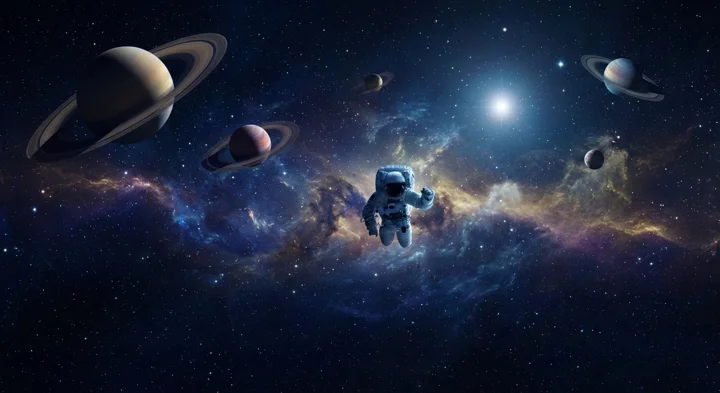
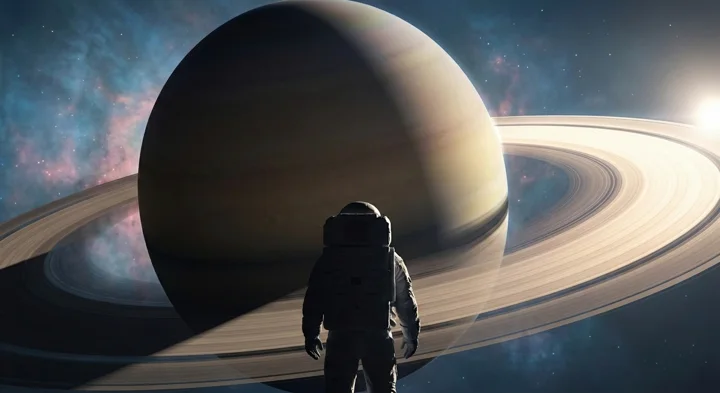
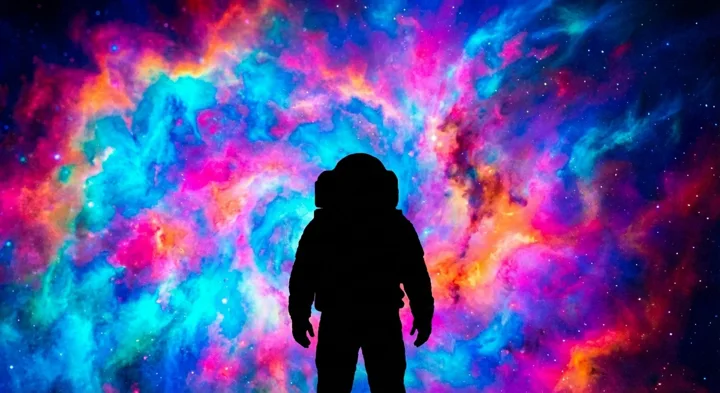
Existing examples from an astronaut-in-space prompt. Run up to 5 models in parallel, compare, then continue with the strongest direction.
Why subscribe
Single-model subscriptions lock you into one visual taste, one workflow, and one answer to every creative problem. MultipleChat gives you a multimodal workspace: chat models, web research, image generation, Image Studio, files, projects and AI Collaboration together.
One prompt
Stop copying the same prompt into separate image tools. Run the idea once, compare model outputs, and choose the strongest visual direction faster.
One workspace
Generate the image, edit it by command, remove or change the background, then keep the result with chats, files and projects.
Better than one model
GPT Image, Nano Banana, Ideogram, Leonardo and Stable Diffusion do not fail in the same way. Model diversity gives you more usable options.
Subscription value
Instead of paying for separate chat, search, image and editing tools, MultipleChat puts the creative and reasoning stack behind one subscription.
The point is not that one model is always best. The point is to stop guessing. Run the same prompt across multiple models and compare realism, typography, composition, style, brand fit and detail handling.
OpenAI
OpenAI's image model, the one behind the ChatGPT image generator. Strong prompt following, clear compositions and reliable everyday marketing visuals.
Try it for: Marketing visuals, precise prompts
Stability AI
Stable Diffusion 3 from Stability AI, with better text rendering and composition than earlier Stable Diffusion versions.
Try it for: Photo and art styles, composition
Leonardo.Ai
Useful for polished game assets, stylized visuals, characters and creative production.
Try it for: Characters, game and concept art
Ideogram
A strong option when graphic design, poster-like output or text inside the image matters.
Try it for: Posters, typography, logos
Google's Gemini image generator. Fast creative image generation for broad exploration and everyday visual tasks.
Try it for: Fast drafts, everyday visuals
The higher-quality Gemini image model from Google, for more detailed and demanding image generation tasks.
Try it for: Detailed, high-fidelity images
Compare them
Run one prompt across up to 5 of the six and pick the best result.
Open Image Generator →Image generation is taste-sensitive, and one model is not enough. Text models can be judged by correctness. Image models also need taste, mood, composition, lighting, typography and brand fit. That is why comparing image models is often faster than trying to force one model to behave.
See which model naturally understands the look you want before you spend time refining.
When images include words, compare how models handle typography, spacing and legibility.
Photorealistic, editorial, illustration, icon, poster and product-shot prompts land differently by model.
Parallel outputs reduce blind re-prompting and help teams choose a visual direction sooner.
The setup is intentionally simple: subscribe once, open Image Generator, write one prompt, choose the models you want to compare, then refine the best result in Image Studio.
01
Use Image Generator for text-to-image comparisons. Switch to Image Studio when you want to upload and edit an existing image.
02
Describe subject, style, format, lighting, background, brand constraints and what should not appear.
03
Run up to 5 of GPT Image, Nano Banana, Nano Banana Pro, Ideogram, Leonardo and SD3 without opening separate tools.
04
Evaluate realism, typography, composition, detail, style, brand fit and commercial usefulness side by side.
05
Download the winner, upload it to Image Studio, and change the background, colors or style with a plain-language instruction.
The image models create new visuals. Image Studio edits images you already have: upload a photo or a generated image, choose GPT Image or Gemini Flash, and type what should change. No layers, masks or manual background selection.
Command editing
Use instructions like "make the background white", "turn this into a product photo", "change the jacket to navy", or "add a soft studio shadow".
Backgrounds
Remove a background for a transparent PNG, replace a messy room with a clean studio, or set a brand-color backdrop.
Chained edits
After an edit, use the result as the new input: remove background, change color, add shadow, then create a final variation.
Before and after
Compare the original and the edit side by side, check the details, then download the result.
Example command
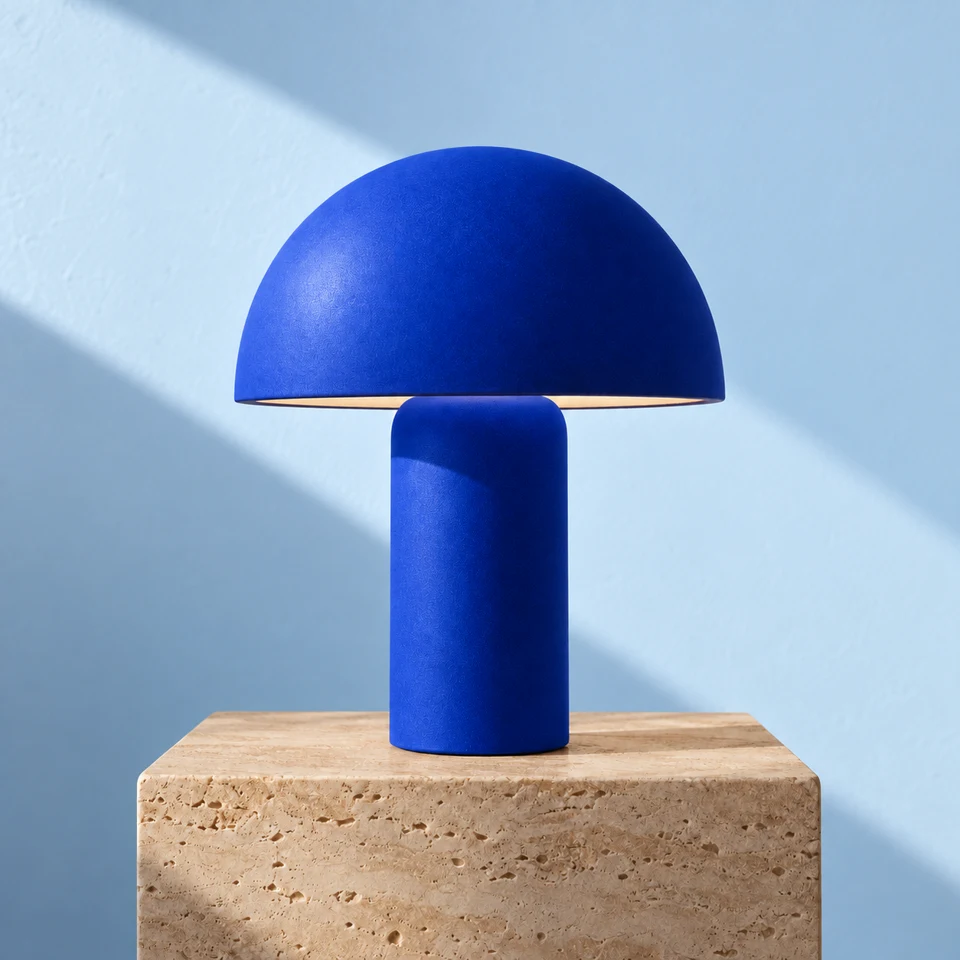
"Make the lamp cobalt blue. Give it a pale blue backdrop."
The same workflow supports product shots, profile images, campaign visuals, social posts, blog graphics and quick design cleanup.
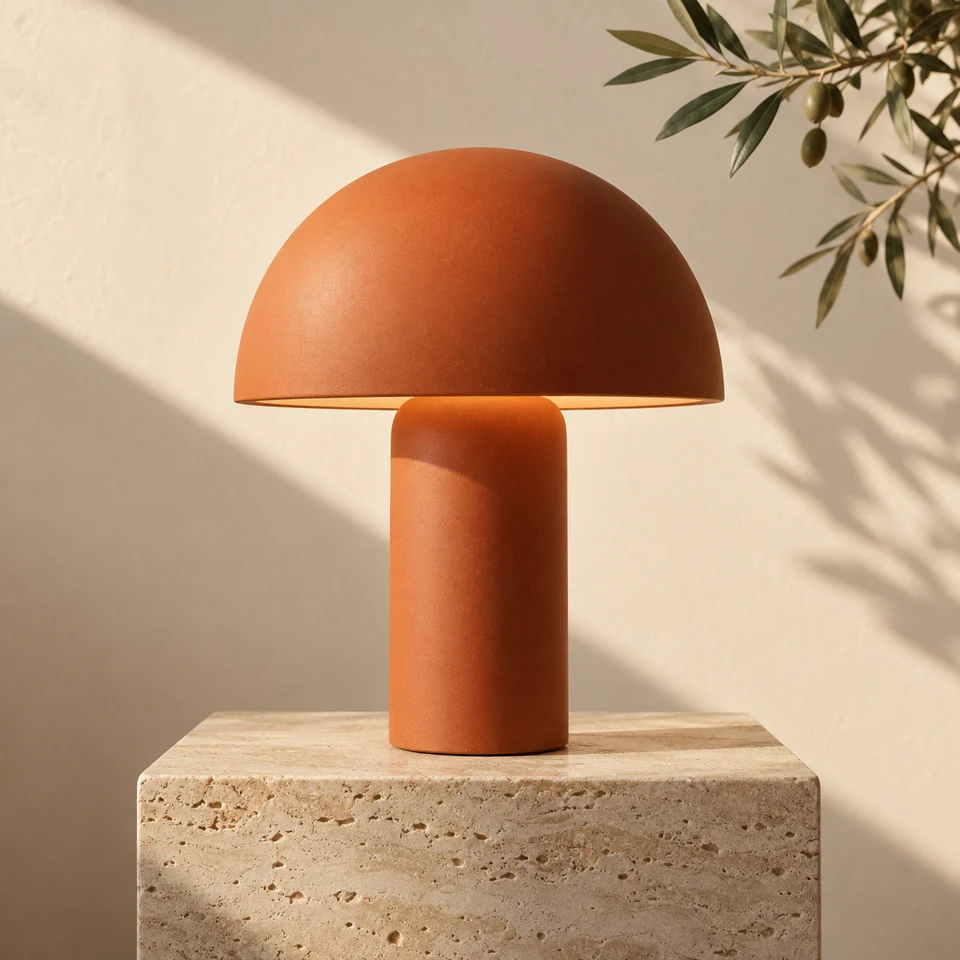
MultipleChat includes six image models: GPT Image from OpenAI, Nano Banana and Nano Banana Pro from Google, Ideogram, Leonardo and SD3 from Stability AI.
Yes. In Image Generator you write one prompt, select up to 5 models and see the images side by side, so you can pick the strongest direction without re-typing the prompt in separate tools.
Yes. This page explains the image model lineup used for text-to-image generation. Image Studio is the editor for images you already have: upload a picture, describe the change, and GPT Image or Gemini Flash edits it. It can also remove backgrounds.
Image generation and Image Studio need an active Pro or Smart plan, including the matching team plans, and are not available during the 7-day trial. Image runs use your plan’s image allowance; see the subscription page for current limits.
Create with model choice
Generate with multiple image models in one workspace, compare the results, and keep your creative process inside MultipleChat.